


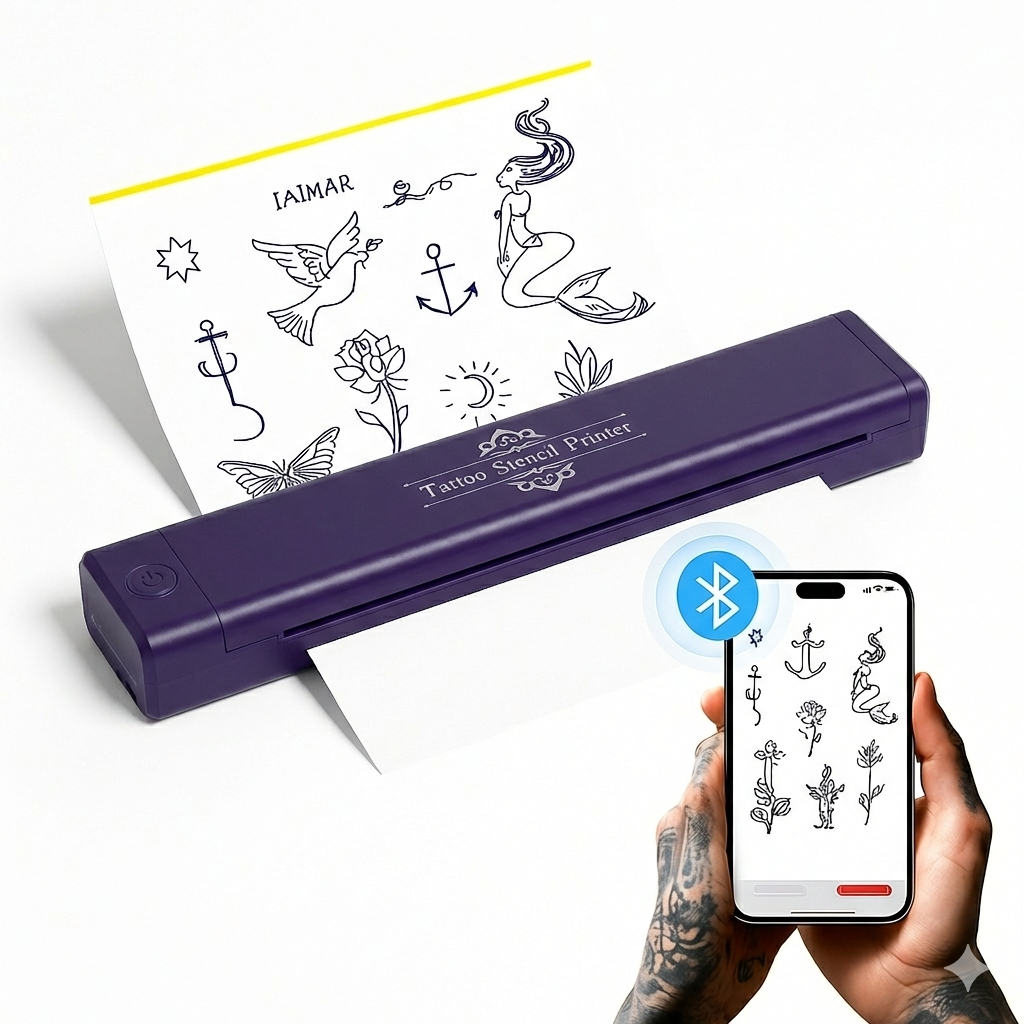
Connect for your device
Use the supported mobile or computer setup in the current guide. Select P84 in the printing software, not only in a system device list.
D5Tattoo / Practice kit
Have an account?
Log in to check out faster.
D5Tattoo / Practice kit
D5Tattoo / P84 printer
A wireless stencil printer supplied with ten transfer sheets, available in black or purple. Follow the P84 guide for the supported connection and software on your device.
Use the supported mobile or computer setup in the current guide. Select P84 in the printing software, not only in a system device list.
Start with a clear outline on supplied paper. Check source quality, power and loading if it is faint; only then investigate the transfer onto practice skin.
Cancel the job and switch the printer off before opening the paper path as directed. Reload a flat sheet without forcing it and send one test job.
Product-specific answers
Choose P84 for a compatible mobile or computer workflow at your practice station. Choose C50 for compact phone-based stencil printing. Check the supported software and paper format for the device you use.
One P84 printer in the selected black or purple finish and ten transfer sheets. Use supplied paper for your first simple test so unfamiliar paper does not add a second variable.
No. P84 uses compatible thermal transfer paper rather than an ink cartridge. If a print is pale, check the source file, power, paper loading and supported settings instead of looking for an ink refill.
Check power, required permissions and the selected device inside the printing software. Disconnect another device that may hold the connection, then reconnect and send one simple test. A system connection alone does not select the print destination.
No. Follow the guide's supported software and connection steps for each device. Install any software or driver required for that workflow and select the correct printer; do not treat a mobile app as a computer driver.
Check the original file at the intended print size. Improve contrast, use a clean outline and avoid repeatedly shrinking a blurred screenshot. Test a simple design before changing several print settings at once.
Match paper type, size and layer arrangement to the current P84 guide. Compare with a supplied sheet and test a small quantity first. A sheet fitting the slot does not by itself prove correct thermal transfer.
Check the transfer surface, amount of medium, movement and drying. Use a clean, dry practice surface, a thin layer and steady pressure without sliding. A smear created after printing is not fixed by increasing printer intensity.
Stop the job, switch off and follow the P84 guide to open the paper path. Remove the sheet without forcing it, check for folds and align a flat replacement. Send one test instead of repeatedly pressing print.
Compare a different source image and a fresh sheet first. If the gap stays in the same position, inspect the paper path and print head as the P84 guide directs. Switch off, allow cooling and use only the specified cleaning method.
Still need help? Contact product support at d5@d5tattoo.com
Complete the session


